
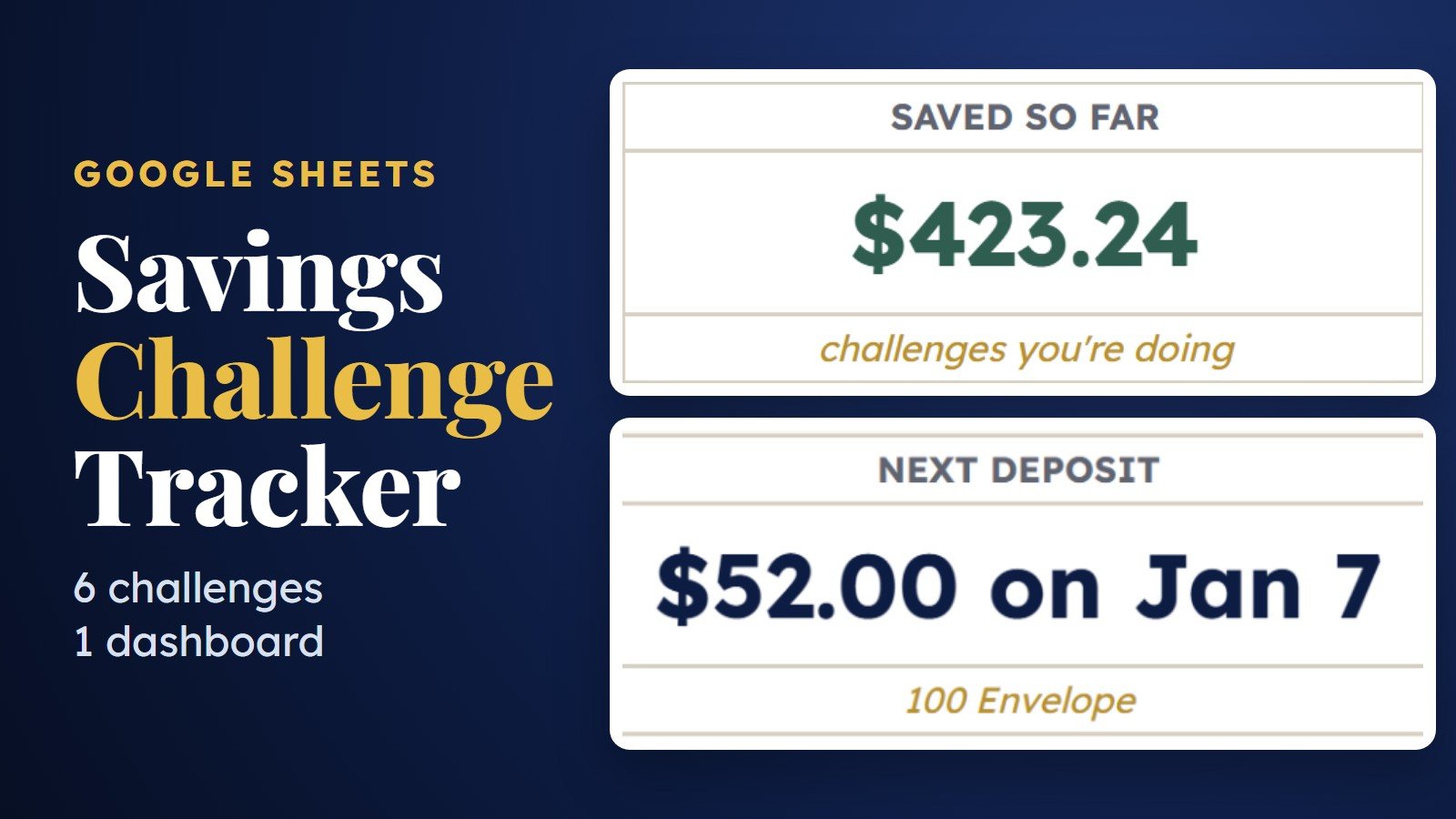
Savings Challenge Tracker for Google Sheets
A savings challenge tracker for Google Sheets with the 52 week, biweekly, 100 envelope, 26 week, custom goal and no-spend challenges in one file. Dates start in January 2027, and one dashboard adds up the challenges you’re doing and shows your next deposit: how much and when.
What is a savings challenge tracker?
It’s a spreadsheet that lists every deposit a savings challenge asks for, with a box to tick each time you save. This one holds six challenges in one Google Sheet: 52 week, biweekly, 100 envelope, 26 week, a custom goal and a no-spend calendar. You set the start date and amounts, tick as you go, and a dashboard shows what you’ve saved and your next deposit.
| Price | $6.99, one-time |
| Format | Google Sheets (free Google account) |
| Tabs | 8: Start Here, Dashboard, 52 Week, Biweekly, 100 Envelope, 26 Week, Custom Goal, No Spend |
| Dates | Start January 2027; change any start date |
| Devices | Desktop, tablet and phone |
| How you get it | A “Make a copy” link right after checkout |
Take a look inside
Real screens from the sheet, with a few sample boxes ticked.
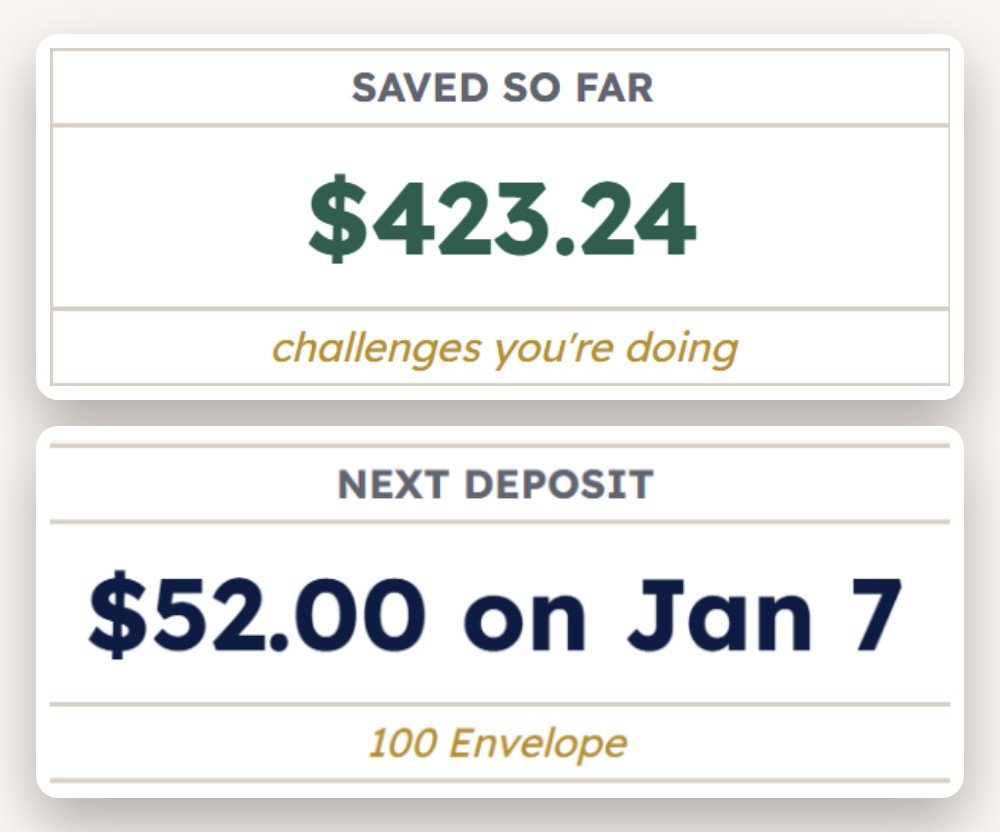
Every challenge, one next deposit
Each challenge gets a row with its goal, saved, left, % and a progress bar, plus the next deposit date and amount. Mark the ones you’re doing with Yes, and the top cards add up only those and show your very next deposit across all of them.
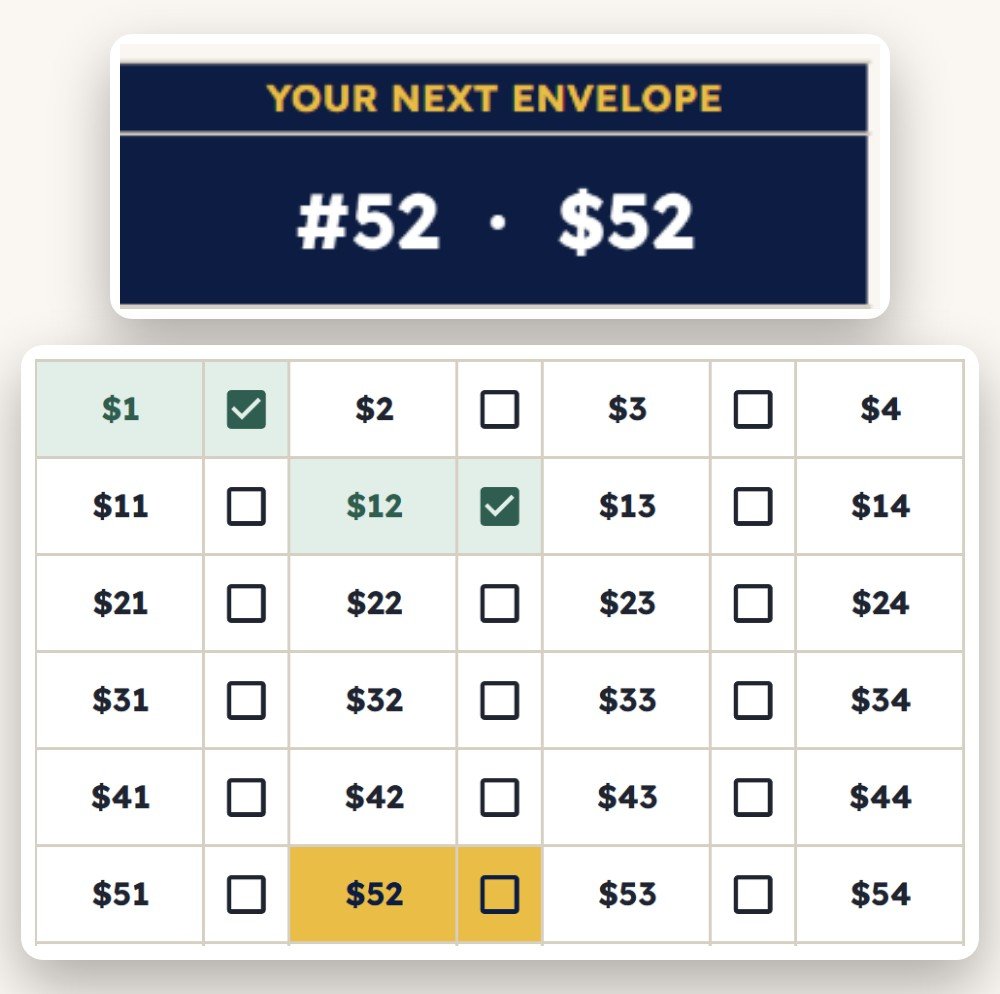
Let the sheet pick your next envelope
A 10 × 10 grid with a box for every envelope. Choose half ($0.50 to $50), classic ($1 to $100) or double ($2 to $200). The sheet draws one envelope you haven’t filled yet and lights it up in gold. Fill it, tick it, and it picks again.
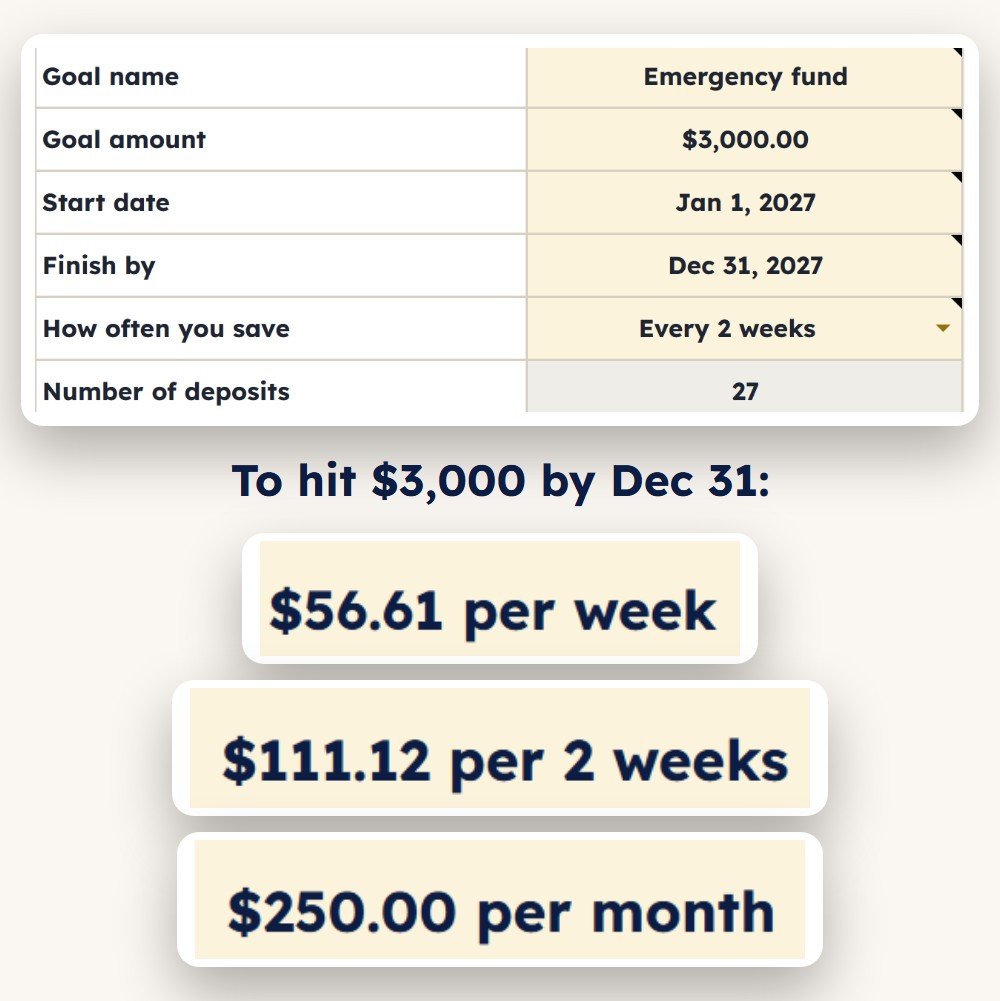
Pick a goal and a date. Get the amount.
Type your goal, then pick a start date and a finish date from the calendar (just double-click the cell). It shows what to save per week, per 2 weeks and per month, then builds a schedule with a box to tick for each deposit (up to 104).
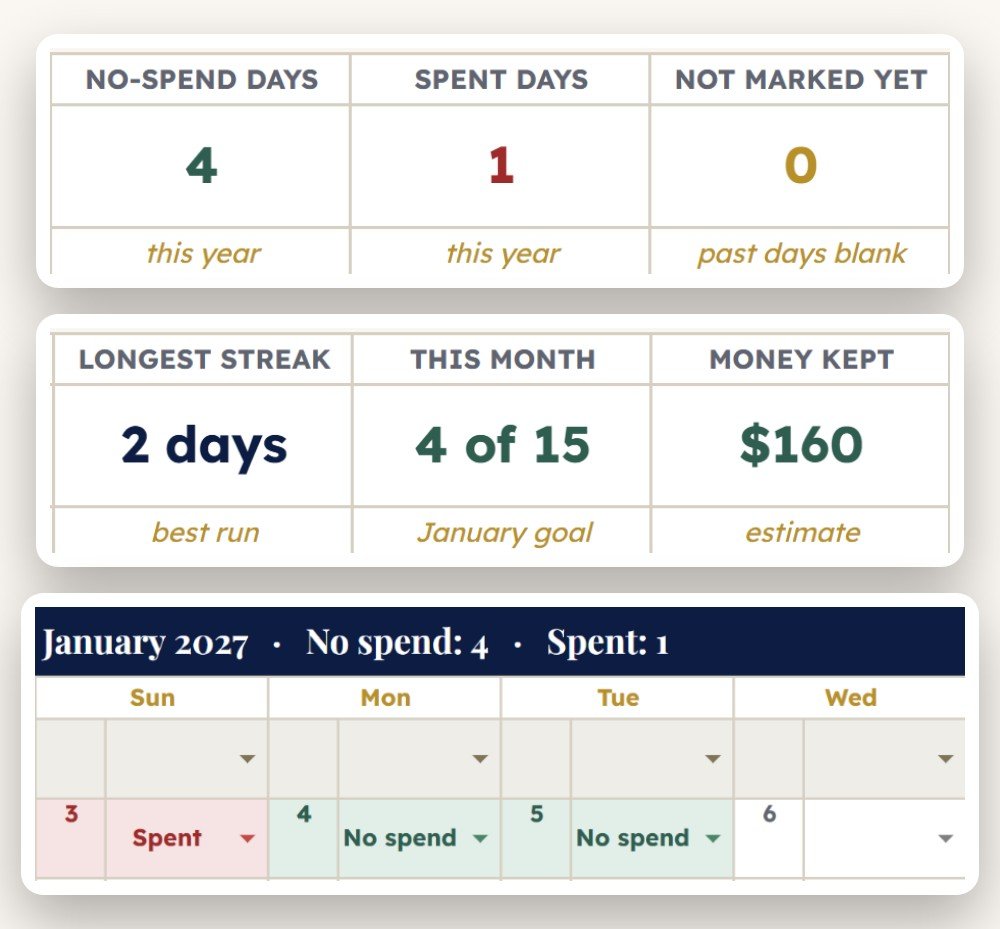
A no-spend calendar for every month
Click the small cell next to a date and pick No spend or Spent from the dropdown. It counts your no-spend days, your current and longest streak, this month against your goal, and an estimate of the money you kept. Each month has its own calendar, so a mark always stays on its day.
What’s inside
Six challenges and a dashboard, with a Start Here page that explains each one.
Dashboard
Goal, saved, left, %, next deposit, deposits due and finish date for every challenge.
52 Week
A step of $1, $2, $5 or $10 a week, and a reverse order switch to start with the biggest week.
100 Envelope
Half, classic or double sizes, a checkbox grid and a random pick from the envelopes left.
Biweekly paychecks
26 paydays, one every 14 days. You set the first deposit and how much to add each payday.
26 Week
Half a year of weekly deposits with your own starting amount and weekly raise.
Custom goal
Goal and finish date in, per week, per 2 weeks and per month amounts out, with a tick-off schedule.
No-spend calendar
12 monthly calendars, a dropdown for each day, streaks, a monthly goal and your own no-spend rules.
Built for clicking
Dates come from a calendar, settings from dropdowns, progress from checkboxes, and every gold setting cell has a hover note.
How it works
Buy & open
Checkout takes seconds. You get a “Make a copy” link to the Google Sheet.
Make a copy
Your own private copy saves to your Google Drive. Pick your challenges on the Dashboard and fill the gold settings.
Tick as you save
Each time you move money to savings, tick that box. Totals, progress and your next deposit update on their own.
Why it’s worth it
Small things that make a savings challenge easier to finish.
“Doing two challenges at once? Fine.” Say Yes to the 52 week and the 100 envelope, and the dashboard adds them up for you. No second spreadsheet, no mental math.
“No more picking an envelope.” The sheet picks one you haven’t filled and highlights it in gold. Don’t like it? Tick the small box for a new one.
“$1 felt too slow.” Switch the 52 week step to $2, $5 or $10 and the whole year updates: $1,378, $2,756, $6,890 or $13,780.
“Big weeks first, while I’m motivated.” Turn on reverse order and week 1 becomes the largest deposit, so the smallest weeks come last.
“It matches my paycheck.” The biweekly tab lines up 26 deposits with your paydays, and you set how much to add each payday.
“I just want $3,000 by December.” The custom goal tab turns that into an amount per week, per 2 weeks or per month, then lists every deposit.
“I can see what I missed.” Rows turn amber when a date has passed and the box isn’t ticked, and the dashboard counts them as Due now.
“Nothing to connect.” No bank login and no add-ons. You move the money your usual way and tick the box, on a laptop or in the Google Sheets app.
FAQ
How much do you save with the 52 week savings challenge?
With a $1 step you save $1 in week 1, $2 in week 2 and so on up to $52, which adds up to $1,378. A $2 step doubles that to $2,756, $5 gives $6,890 and $10 gives $13,780. In this sheet you pick the step and it fills in every week, or flips the order if you’d rather start with the biggest week. Read more in our 52-week savings challenge guide.
How does the 100 envelope challenge work?
You number 100 envelopes from $1 to $100, fill one at a time in any order, and end up with $5,050 when all 100 are full. This tracker gives you a checkbox for each envelope, lets you choose half ($2,525) or double ($10,100) sizes, and picks a random envelope from the ones you haven’t filled yet. See our 100 envelope challenge guide for tips.
Can I track more than one savings challenge at once?
Yes. Set “Doing it?” to Yes for each challenge you’re running, and the dashboard adds up their goals and savings and shows your next deposit across all of them. Need help choosing? Our savings challenge ideas post compares the options.
Can I start on a date other than January 1?
Yes. Every challenge has its own start date (the biweekly tab uses your first payday). Double-click the gold date cell and pick a new day from the calendar, no typing needed. The sheet starts in January 2027, and changing a date moves the whole schedule with it.
How does the no-spend challenge work?
You pick days (or a whole month) when you only pay for essentials like bills and groceries on your list, and skip everything else. In the NO SPEND tab you click each day and pick No spend or Spent. The sheet counts your no-spend days and streaks, compares the month with your goal, and estimates the money you kept from your typical daily spend. Write your own rules in the gold lines.
Does it work on my phone? Is there an Excel version?
It’s built for Google Sheets and works in the free Google Sheets app on phones and tablets, including ticking the boxes. Make your copy in a browser first. It isn’t sold as an Excel file.
What do I actually receive?
A “Make a copy” link to the Google Sheet right after checkout. Click it, choose Make a copy, and your own editable version saves to your Google Drive. It never connects to a bank.
Can I get a refund?
Because this is an instant digital download — you receive the full template the moment you buy — all sales are final and refunds aren’t offered. If anything about your file doesn’t work as described, send a message through our contact form and we’ll help you get it sorted.
More money templates
You might also like these.
Pick your challenge. Tick your first box.
52 week, biweekly, 100 envelope, 26 week, a custom goal and a no-spend calendar in one Google Sheet for $6.99.
Get the tracker →