

Quick answer: To make a budget in Excel, open a blank sheet and build four columns: category, planned, actual, and difference. List your income up top, your expenses below, then let two simple =SUM formulas add each up and one subtraction show what’s left. That’s the whole engine. It helps to know what “normal” looks like: the average U.S. household spent $78,535 in 2024, with housing alone eating 33% (BLS). With consumer prices up 3.4% in the 12 months through August 2026 (BLS’s August 2026 CPI release), a budget that just watches where the money goes is worth building.
Be honest. You’ve probably made a budget in Excel before. You picked nice colors, bolded the headers, felt like a tiny CFO for an evening… and then barely opened it again. The spreadsheet isn’t the hard part; Excel will happily do the math. The hard part is building something simple enough that you actually come back to it a few weeks later.
So that’s what we’re doing here: a budget that uses just two kinds of formulas and is boring enough to keep. No macros, no pivot tables, no finance degree. Let’s go.
Key takeaways
- A working budget in Excel needs just four columns: category, planned, actual, difference.
- You need two formulas: =SUM to total, and a subtraction to see what’s left. Excel handles the rest.
- Compare your plan to real benchmarks (housing ~33%, transport ~17%, food ~13%) so you know if your numbers are realistic.
- The budget you keep beats the fancy one you abandon. Simple is easier to stick with.
What a budget in Excel actually is (don’t overthink it)
Strip away the intimidation and a budget is just two lists and some subtraction: money coming in, money going out. Excel’s job is to add up each list and show the difference, so you can answer the key question: is there money left, or am I about to overspend?
The rest is decoration: the colors, the charts, a tab for each month. Nice to have, but not the point. If your spreadsheet answers “what’s left?” at a glance, it’s already doing its main job.
How to make a budget in Excel, step by step
Open a blank workbook and follow along.
- Set up four columns. In row 1, type Category, Planned, Actual, and Difference across cells A1 to D1. Bold them so they’re easy to spot. These four headers are the entire skeleton.
- List your income first. A couple of rows down, write “Income,” then list each source: paycheck, side gig, the money your roommate keeps owing you. Put the amounts under Planned.
- Total your income. In the row below your income list, click the Planned cell and type
=SUM(, drag over your income amounts, close the parenthesis, and hit Enter. Excel adds them for you. This is formula number one. - List your expenses. Skip a row and start a new block: rent, utilities, groceries, gas, subscriptions, fun money, savings. Yes, savings goes here. Pay yourself like a bill. Put each planned amount in the Planned column.
- Total your expenses. Same move: an
=SUM(under your expense list. Same formula, new list. - Find what’s left. In an empty cell, subtract:
=your income total cell-your expense total cell. This subtraction is formula number two. If it’s positive, that’s your breathing room. If it’s negative, the sheet just did its job and caught a problem before your bank did. - Fill in “Actual” as the month goes. The Planned column is your intention; the Actual column is real life. For Difference, type
=planned-actual so you can see where you drifted. This column is where a lot of the useful, slightly humbling insight lives.
That’s a complete, functional budget. Want it prettier later? Format the totals as currency or drop in a chart, but don’t let decorating become procrastination. A plain sheet you use beats a gorgeous one you don’t. And if building it from scratch already sounds like a chore, fair enough. There’s a shortcut coming.
What formulas do you actually type?
Four cells to type, but only two kinds of formula. You can copy them exactly as written. The cell references below assume your income total landed in B7 and your expense total in B21; swap in whatever rows you ended up with.
| What you want | What you type | Where it goes |
|---|---|---|
| Total your income | =SUM(B3:B6) | The Planned cell just under your income list |
| Total your expenses | =SUM(B9:B20) | The Planned cell just under your expense list |
| What is left | =B7-B21 | Any empty cell: income total minus expense total |
| Drift on one line | =B9-C9 | The Difference cell on that row, then drag it down |
Two typos cause a lot of the “why is my sheet broken” moments. The equals sign goes first, so it is =SUM(B3:B6) and never SUM=(B3:B6). And inside the brackets a colon means “every cell from here through here” while a comma means “these particular cells,” so =SUM(B3:B6) adds four cells and =SUM(B3,B6) adds only two.
What each category should actually be
Here’s what a lot of Excel tutorials skip: they show you how to type numbers, but not what realistic numbers look like. So you end up guessing whether your rent is fine or a five-alarm fire. Real benchmarks help. According to the Bureau of Labor Statistics’ Consumer Expenditure Survey, here’s how the average American household actually split its spending in 2024:
| Category | Share of spending | What to watch |
|---|---|---|
| Housing | ~33% | The biggie. If you’re way over, it squeezes the rest of your budget. |
| Transportation | ~17% | Car payment + gas + insurance sneak up fast. |
| Food | ~13% | Groceries vs. takeout. This is where small leaks add up. |
| Everything else | ~37% | Healthcare, entertainment, insurance, and the random store run. |
These aren’t rules, they’re a mirror. Housing and transportation alone eat about half of the average household’s spending, and housing was the only major category with a statistically significant increase in 2024, up 3.3%. If your sheet shows housing well above that 33%, that’s not a moral failing. It’s just a clear signal of where your pressure is coming from. Type your real numbers beside these and you’ll see which category is under pressure.
What is the 50/30/20 rule in Excel?
It is a fast way to turn a blank sheet into targets. Split your take-home pay into 50% needs, 30% wants, and 20% savings and debt, then park those three numbers next to your Planned column so you can see how far off you are. The split comes from the 2005 book All Your Worth by Elizabeth Warren and Amelia Warren Tyagi. Treat it as a starting point rather than a law: the percentages are yours to adjust.
| Bucket | Share of take-home pay | What you type |
|---|---|---|
| Needs | 50% | =B7*0.5 |
| Wants | 30% | =B7*0.3 |
| Savings and debt | 20% | =B7*0.2 |
B7 is your income total again. Make sure that figure is take-home pay, not gross. Compare each result with what you actually planned, and the gap points at the bucket to work on first. When the split stops fitting real rent, the 50/30/20 rule guide walks through tuning the percentages.
Want the sheet already built for you?
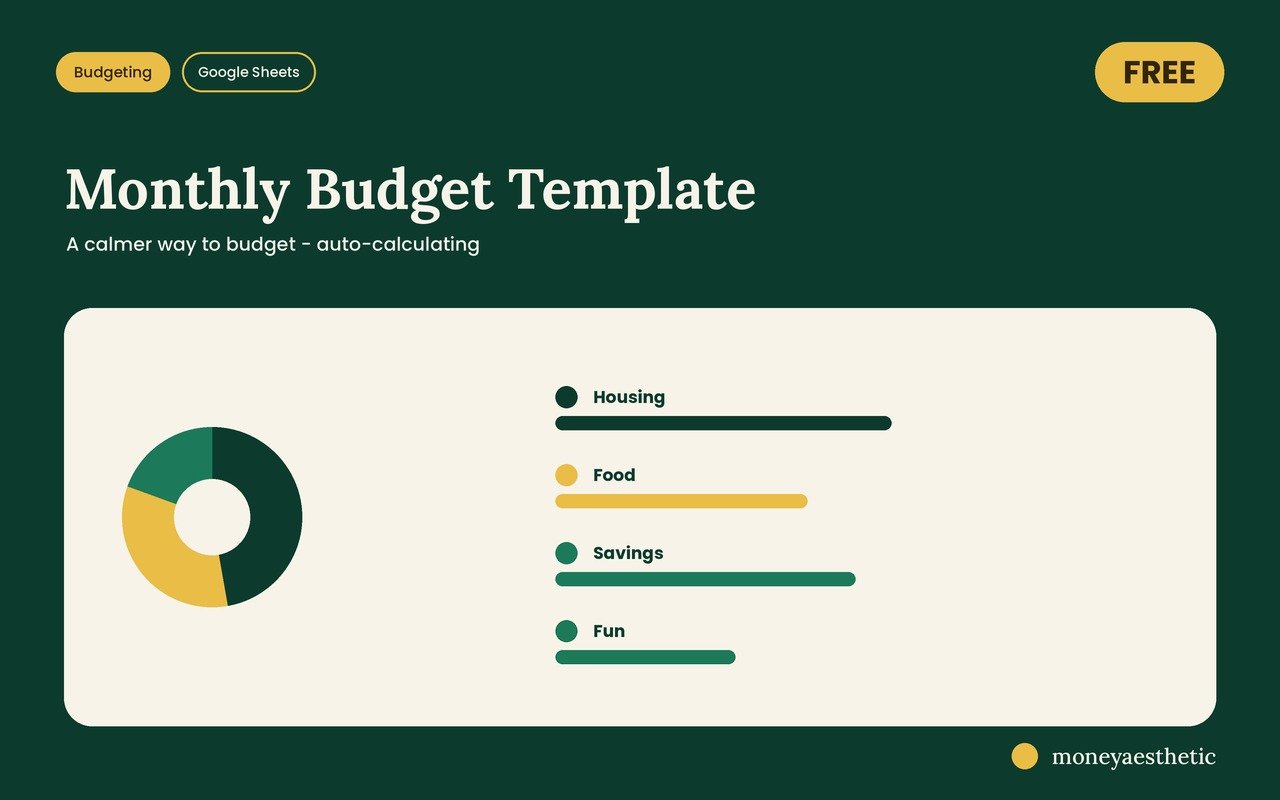
Skip the setup. Our free monthly budget template is a ready-made spreadsheet with the columns, formulas, and totals already done, plus a snapshot at the top that shows your leftover as you type your numbers. Use it in Google Sheets, or download it as an Excel file from the File menu. It’s free, and it opens in the Google Sheets phone app too.
Get the free budget template →Common mistakes that quietly kill an Excel budget
“I’ll build in the fancy features now.” The macros, a tab for each month, the color-coded formatting. It feels productive, but it’s usually just fancy procrastination. Start with one plain sheet; add sparkle once the habit sticks.
“I forgot the irregular stuff.” Car registration, holidays, that annual subscription charge that ambushes you once a year. These aren’t surprises. They’re expenses you scheduled poorly. Give them a line, even a rough monthly estimate. The yearly budget planner guide walks through placing them month by month.
“I just budgeted the bills.” A budget with no fun money is a crash diet. It works until Friday. Build in guilt-free spending on purpose, or your budget won’t survive contact with a real weekend.
“Savings is whatever’s left over.” Spoiler: there’s rarely anything left over. Put savings in as an expense line near the top so it gets funded first, not last.
The part many tutorials skip: keeping it alive
Here’s the part a lot of quick how-to posts leave out. Making a budget in Excel is genuinely easy. Maintaining one is where a lot of people quietly fall off, and it’s often less a discipline problem than a friction problem. Each month you reopen the file, try to remember what your cells meant, re-drag a formula you deleted, and hand-type where each dollar went. Miss a week and the sheet is out of date; miss a few and you stop trusting it. That’s how a homemade budget quietly goes stale.
You can fight that friction two ways. One: keep your Excel sheet stupidly simple, update it the same day each week, and resist the urge to redesign it. That can work well. Two: use a spreadsheet already built to stay alive, where the formulas are already in place, the totals update themselves, and you don’t start from a blank grid. That’s exactly why we made our monthly budget template free: the setup that stalls a lot of DIY budgets is already done, so what’s left is the easy part: typing your numbers and watching it calculate. And if you’re here because money runs out before payday, pair it with a plan for living paycheck to paycheck so the timing finally matches. If a grid is the part you keep bouncing off, a Notion budget template tracks your income and expenses in a database instead, with the money left totaled at the bottom.
Either path is fine. Just pick the one you’ll actually keep, because a budget works when you keep opening it month after month. The math is rarely the problem. The coming back is. Make coming back easy and you’ve basically already won.
Frequently asked questions
How do I make a simple budget in Excel?
Open a blank workbook and make four columns: category, planned, actual, and difference. List income at the top and expenses below, use =SUM to total each, then subtract expenses from income to see what’s left. That seven-step setup is a complete budget. The rest is optional decoration.
What formulas do I need for a budget in Excel?
Just two. Use =SUM(range) to add up your income and your expenses, and a simple subtraction (=income total − expense total) to find your leftover. Optionally add =planned − actual in a difference column to track where you drifted.
Is Excel or Google Sheets better for budgeting?
Either can handle a simple budget, since both have a SUM function and basic subtraction. Google Sheets has a phone app that lets you create, view, and edit spreadsheets; Excel is great if you already own it. A template built in Google Sheets, like ours, can be downloaded as an Excel file from the File menu, so you’re not locked into either.
Does Excel have a free budget template?
Yes. In Excel, go to File, then New, and search “budget” to see built-in templates like a personal or family budget. They’re a fine starting point; pick whichever layout you’ll actually keep updating.
How much should I budget for each category?
As a reality check, the average U.S. household spent about 33% on housing, 17% on transportation, and 13% on food in 2024, according to the BLS. Use those as a mirror, not a rule. If a category runs much higher, that’s likely where your budget is under pressure.
How often should I update my budget in Excel?
A weekly check-in is a good rhythm to aim for. Pick the same day, enter what you actually spent, and check your leftover. Waiting a whole month lets things pile up until the sheet feels out of date, which is when a lot of people give up on it.
Why don’t my Excel budgets last?
Often it’s friction, not willpower. Rebuilding formulas, hand-entering each expense, and reopening a blank-looking file each month can wear people down. Keeping the sheet very simple, or using a template that does the math for you, removes much of the friction that makes budgets stall.
Can I make a budget in Excel on my phone?
Yes, with the Excel or Google Sheets mobile app, though typing formulas on a small screen is fiddly. It’s easier to build the budget once on a computer, then just enter your spending from your phone during the month.
This article is for general educational purposes only and isn’t financial advice. Your situation is unique. Consider consulting a qualified financial professional before making decisions about budgeting, saving, or investing.